Bookkeeping careers
Excel skills every bookkeeper needs
The spreadsheet skills bookkeepers use most, from clean tables and SUMIFS to XLOOKUP matching, pivot tables and a bank reconciliation sheet.
By TNas · · 7 min read
The Excel skills a bookkeeper uses most are keeping data in clean tables, totaling with SUMIFS, matching records with XLOOKUP, summarizing with pivot tables and building a reconciliation sheet. You don't need macros or advanced modeling. You need to take a messy export from a bank or your accounting software, clean it, and use it to prove the books are right.
Spreadsheets are part of the job description. The U.S. Bureau of Labor Statistics lists "use bookkeeping software, spreadsheets, and databases" first among the duties of bookkeeping, accounting and auditing clerks (BLS Occupational Outlook Handbook). This guide covers each skill with a bookkeeping use, then ties them together in one practice workflow. All the businesses and figures are fictional.
Skill 1: keep data in a clean table
Every other skill depends on this one. A clean table is a block of data with one header row, one record per row and no blank rows or columns. Most bookkeeping data arrives as an export: a bank statement download, an aged receivables list or a general ledger report. Before you analyze it, shape it.
Microsoft's guidance for pivot tables sums up the rules well (Microsoft Support: Create a PivotTable):
- keep data in a tabular format with no blank rows or columns
- organize data in columns, not rows
- use a single row of unique, non-blank headers
- keep one data type in each column The same page recommends converting the range to an Excel table, because rows added to a table are included automatically when you refresh.
A clean bank export looks like this:
| Date | Reference | Description | Amount | Account |
|---|---|---|---|---|
| 2026-03-02 | DEP-301 | Customer payment, Alder & Co. | 1,500.00 | Accounts receivable |
| 2026-03-05 | CHK-1042 | March rent | -1,200.00 | Rent expense |
| 2026-03-31 | FEE | Monthly service fee | -35.00 | Bank fees expense |
One row per transaction, one header row, real dates and real numbers. No subtotal rows in the middle and no merged cells.
Skill 2: clean text, dates and amounts
Exports are rarely clean. Three problems come up again and again.
Extra spaces in text
"Rent expense " with a trailing space won't match "Rent expense" in a formula. The TRIM function removes all spaces from text except single spaces between words (Microsoft Support: TRIM). Microsoft notes one catch: TRIM doesn't remove the nonbreaking space character (decimal value 160), which often appears in text copied from web pages.
Dates and amounts stored as text
If dates sort alphabetically or amounts won't add up, they are probably stored as text. Convert them to real dates and numbers before you build any formula on them.
Rounding
Money should end at two decimal places. If you calculate allocations or percentages, wrap the result in ROUND, whose syntax is ROUND(number, num_digits). With num_digits set to 2, the result is rounded to two decimal places, so a split of $100.00 three ways shows as $33.33, not $33.333333.
Skill 3: total by account with SUMIFS
SUMIFS adds the values in one range that meet one or more conditions in other ranges. Its syntax, from Microsoft's SUMIFS reference, is:
SUMIFS(sum_range, criteria_range1, criteria1, [criteria_range2, criteria2], ...)
Microsoft warns that the sum range comes first in SUMIFS but third in the older SUMIF, a common source of errors when you copy formulas between them.
Bookkeeping uses:
- Total one account for one month. In a table named
Bank, this totals March rent:=SUMIFS(Bank[Amount], Bank[Account], "Rent expense", Bank[Date], ">="&DATE(2026,3,1), Bank[Date], "<="&DATE(2026,3,31)) - Check a ledger export against a trial balance. List each account once, total its debits and credits with SUMIFS, and compare to the trial balance report.
- Prove debits equal credits. Sum the debit column and the credit column of a journal export. If they differ, a line is missing or one-sided.
Skill 4: match records with XLOOKUP
XLOOKUP finds a value in one range and returns the matching item from another. Its syntax, from Microsoft's XLOOKUP reference, is:
XLOOKUP(lookup_value, lookup_array, return_array, [if_not_found], [match_mode], [search_mode])
By default it looks for an exact match. If nothing matches and you leave out if_not_found, it returns #N/A. For bookkeeping, that if_not_found argument is the useful part. It lets you label every unmatched line in plain words.
Say you have the bank export in a table named Bank and the book Cash entries in a table named Books, both with a Reference column. In a new column next to the bank data:
=XLOOKUP([@Reference], Books[Reference], Books[Amount], "Not in books")
Every bank line that comes back "Not in books" is a candidate for a book adjustment, such as a bank fee or interest. Run the same lookup the other way, from Books to Bank, and anything "Not on statement" is usually a deposit in transit or an outstanding check. This mirrors the matching step in the matching transactions lesson.
XLOOKUP isn't available in every version of Excel. If your version lacks it, the older lookup functions can do the same matching with more care.
Skill 5: summarize with pivot tables
A pivot table summarizes a long list without formulas. To build one, select the table, choose PivotTable on the Insert tab, pick where to place it, then drag fields into the layout.
The most useful bookkeeping pivot is a quick trial balance from a general ledger export:
- Put Account in Rows.
- Put Debit and Credit in Values, both summed.
- Check that the grand totals of the two columns are equal.
If the totals differ, the export is incomplete or an entry was posted one-sided. If they agree, the books still might not be right, because some errors balance. The errors a trial balance cannot find lesson explains which ones.
Other pivots worth knowing: expenses by vendor by month (to spot a duplicate bill) and receivables by customer (to compare with an aged receivables report).
Skill 6: build a bank reconciliation sheet
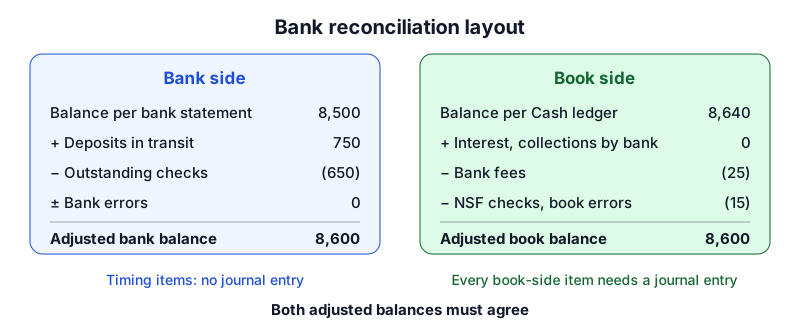
A reconciliation sheet brings the skills together. It shows the bank side and the book side, each adjusted, and they must end at the same number. Here is a fictional March example:
| Bank side | Amount | Book side | Amount |
|---|---|---|---|
| Balance per bank statement | 8,450.00 | Balance per books | 9,035.00 |
| Add: deposit in transit | 1,200.00 | Less: bank service fee | 35.00 |
| Less: outstanding check #1047 | 650.00 | ||
| Adjusted bank balance | 9,000.00 | Adjusted book balance | 9,000.00 |
The bank side works out as $8,450 + $1,200 − $650 = $9,000. The book side is $9,035 − $35 = $9,000. They agree, so the reconciliation is complete.
Only the book-side items need journal entries, because the bank-side items are timing differences that clear on their own. The bank fee was found by the XLOOKUP "Not in books" check:
| Account | Debit | Credit |
|---|---|---|
| March 31: record the bank service fee from the statement | ||
| Bank Fees Expense | $35.00 | |
| Cash | $35.00 | |
Add a formula cell that subtracts the adjusted book balance from the adjusted bank balance. It should show 0.00. If it doesn't, the difference is your starting clue. The bank reconciliation basics lesson and the step-by-step bank reconciliation guide walk through more cases.
A practice workflow that uses every skill
Work through this once with any fictional month of data, then repeat it until it takes under an hour:
- Import a bank export and a book Cash export into two Excel tables.
- Clean descriptions with TRIM, fix dates and amounts stored as text, and round to two decimals.
- Match each side to the other with XLOOKUP, labeling anything unmatched.
- Reconcile on a sheet like the one above until the difference is zero.
- Record the journal entries for book-side items.
- Summarize the ledger with a pivot table and confirm debits equal credits.
- Check two or three accounts with SUMIFS against the trial balance.
The output of this workflow, a finished reconciliation and a balanced trial balance, makes a strong portfolio piece. The sibling post on building a bookkeeping portfolio explains how to present it, and how to become a bookkeeper shows where spreadsheet skills fit in a wider study plan.
Frequently asked questions
Do bookkeepers still need Excel if they use accounting software?
Yes, in most roles. Accounting software records the transactions, but exports, reconciliations, cleanup and one-off analysis still happen in spreadsheets. The BLS lists spreadsheets alongside bookkeeping software in the core duties.
Which Excel skill should a beginner learn first?
Clean tables. A tidy table makes SUMIFS, XLOOKUP and pivot tables work the first time, and most formula errors in bookkeeping trace back to messy data.
Can Excel replace a general ledger?
It can hold one, but it doesn't enforce double-entry rules on its own. You have to build the checks yourself, such as the debits-equal-credits test above.
What to practice next
Excel speeds up the work, but the bookkeeping judgment comes first. Practice the logic with bank reconciliation exercises and trial balance error exercises, then try the bank reconciliation simulator and rebuild its numbers in your own sheet.
Sources
- Bookkeeping, Accounting, and Auditing Clerks (Occupational Outlook Handbook) — U.S. Bureau of Labor Statistics
- SUMIFS function — Microsoft Support
- XLOOKUP function — Microsoft Support
- Create a PivotTable to analyze worksheet data — Microsoft Support
- TRIM function — Microsoft Support
Educational content for US small-business bookkeeping, not tax, legal or accounting advice. Example businesses and figures are fictional. See our editorial policy for how we write and correct content.